For product owners, team leads and project managers
Sprint reports from Azure DevOps
Give stakeholders a sprint snapshot they can read without opening the board. Select an iteration or query in Bravo Notes, separate completed work from open items, and export a PDF with descriptions and counts. For recurring status updates, publish Markdown to a Wiki through a scheduled pipeline.
30 days, every feature, no credit card. The trial does not convert into a paid plan automatically.
A report stakeholders can read without opening Azure DevOps
A board shows the team its current work. A sprint review or steering committee may also need a dated report with descriptions and outstanding items. Save the layout once, then refresh the work items for each review.
What goes into the document
- Completed work with descriptions, sorted by priority. Add acceptance criteria if your readers need them.
- Open items with their current state, using completion rules that match your Azure DevOps process.
- A count per section and the sprint name from a parameter.
- Only the fields the reader cares about, such as area, effort or a customer field, grouped by team or area path if you want.
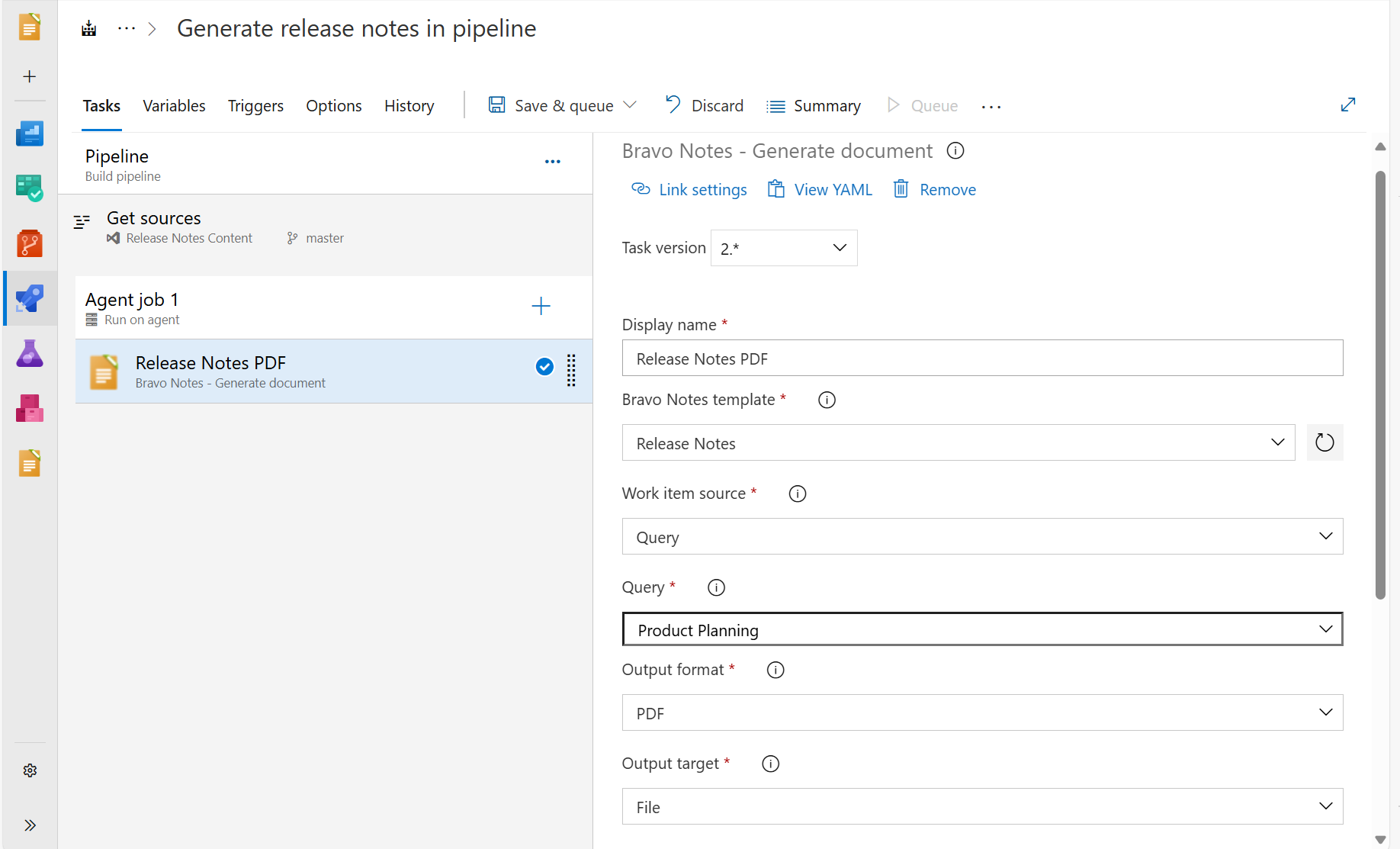
Build the document in Azure DevOps
Step 1
Add the sprint
On the Work items tab, add the current iteration or a saved query. A status report across teams uses a query over several area paths in the same way.
Step 2
Separate completed and open work
Set label rules for the completed states in your process, such as Closed or Done, and put other states in the open section. Resolved does not always mean completed. The template shows the current state of the selected items, not their state at a past sprint boundary.
Step 3
Export or schedule
Export a PDF with a cover page for the sprint review, or Markdown for the Wiki. For a weekly status report, run the build task on a schedule with the query as its source and a Wiki page as the target.
Next time
Select the next iteration and update the Sprint parameter. Export at the review and retain the file if you need a record of the work item states at that time.
Starter template
Paste this on the Template tab, add the iteration and create the labels below. Adjust Closed and Done to the completed states in your process, then fill in the Sprint parameter. Open items are not automatically carried into another sprint. Items moved out of the selected iteration will not appear unless your query includes them.
Paste into the Template tab
# Sprint report: {{ param 'Sprint' }}

Prepared {{ date format='d mmmm yyyy' }} for the steering committee. {{count}} work items in scope.

{{#section 'done'}}
## Completed work ({{count}})

{{#workItems orderBy='Priority'}}
### {{ field 'Title' }} ({{ id }})

{{{ field 'Description' }}}
{{/workItems}}
{{/section}}

## Still open at export

{{#section 'carried-over'}}
{{#workItems}}
- {{ field 'Title' }} ({{ field 'State' }})
{{/workItems}}
{{else}}
No open items in the selected scope.
{{/section}}
Labels to create on the Work items tab
| Label | Rule |
|---|---|
done | State in Closed, Done (adjust to your process) |
carried-over | State not in Closed, Done (adjust to your process) |
Parameters to fill in on the Parameters tab: Sprint
Start with fields, sections and linked items in the syntax reference.
Example document excerpt
Sprint report: Sprint 42
Prepared 11 November 2026 for the steering committee. 9 work items in scope.
Completed work (7)
Export the invoice list to CSV (4812)
Account managers can download the currently filtered invoice list as a CSV file from the Invoices page.
Still open at export
- Filter orders by delivery date (Active)
- Archive closed accounts after 24 months (New)
Illustrative excerpt with fictional work items. This is not a captured Bravo Notes export; your template, data and export settings determine the final document.
We currently build your first custom template for free during your trial.
Contact us“We've had a fantastic experience with the Bravo Notes product and customer support. Saves a significant amount of time and the release notes have been well received by our audience.”
What you need
- Any Bravo Notes subscription plan. Readers of the exported file need no Bravo Notes license and no Azure DevOps access.
- An iteration or saved query that returns the sprint scope. The build task also accepts the current, previous and next iteration as a source.
- For a scheduled report, a pipeline with the Bravo Notes task and write access to the target Wiki or repository.
Plans apply to one Azure DevOps organization and include named seats for document creators. Readers of exported files do not need a Bravo Notes license. Links back to work items still require Azure DevOps access. Compare plans.
Frequently asked questions
- Can stakeholders without Azure DevOps access read it?
- Yes. The PDF, HTML or Markdown file is a regular file you can email or publish. Links back to work items inside the document still need Azure DevOps access, so leave them out for external readers.
- Can I schedule a weekly status report?
- Yes. Create a pipeline with a schedule trigger, add the Bravo Notes task with a query such as "closed in the last 7 days" as its source, and publish Markdown to a Wiki page named with the date. The scheduling guide walks through it step by step.
- Can I group the report by team or area path?
- Yes. The group helper groups work items by any field, with a heading and a list per group. Nest groups over several levels, for example Area Path, then Assigned To. Use count for work item totals and sum for numeric field totals within each group.
- Is the report live?
- It is a snapshot of the selected work items at export time. Save the exported file to retain that record. Generating it again uses current data; it does not reconstruct the sprint as it looked on an earlier date.
Go deeper
Try sprint reports with your own work items
Install Bravo Notes in your Azure DevOps organization. Start with a small selection of work items, adapt the template above and check the preview before exporting your first document.
Start free trial30 days, every feature, no credit card. The trial does not convert into a paid plan automatically.
Compare plans