For teams preparing their next release
Release notes for Azure DevOps
Turn the work items in a build, release, sprint or query into release notes. Bravo Notes groups features and fixes using rules you save with the template. Review and edit content directly from the preview, then export PDF, HTML or Markdown. Use the same template in Azure Pipelines when you are ready to automate.
30 days, every feature, no credit card. The trial does not convert into a paid plan automatically.
One template, every release
Copying work item titles into Word is only the start. You still need to separate features from fixes, check the wording and format the document. Bravo Notes saves the section rules and layout so you can focus on reviewing what changed.
What goes into the document
- New features, fixed bugs and known issues in separate sections, sorted by label rules you define once.
- Any work item field: the title, the description with its images, or a custom field with customer-facing wording.
- Product and version from parameters you define once and reuse anywhere in the document, for example the version in the title, header and footer. The starter uses the generation date; add a release-date parameter if you need a different date.
- PDF with cover page, table of contents, header, footer and page numbers, or HTML and Markdown for a Wiki, Confluence or your website.
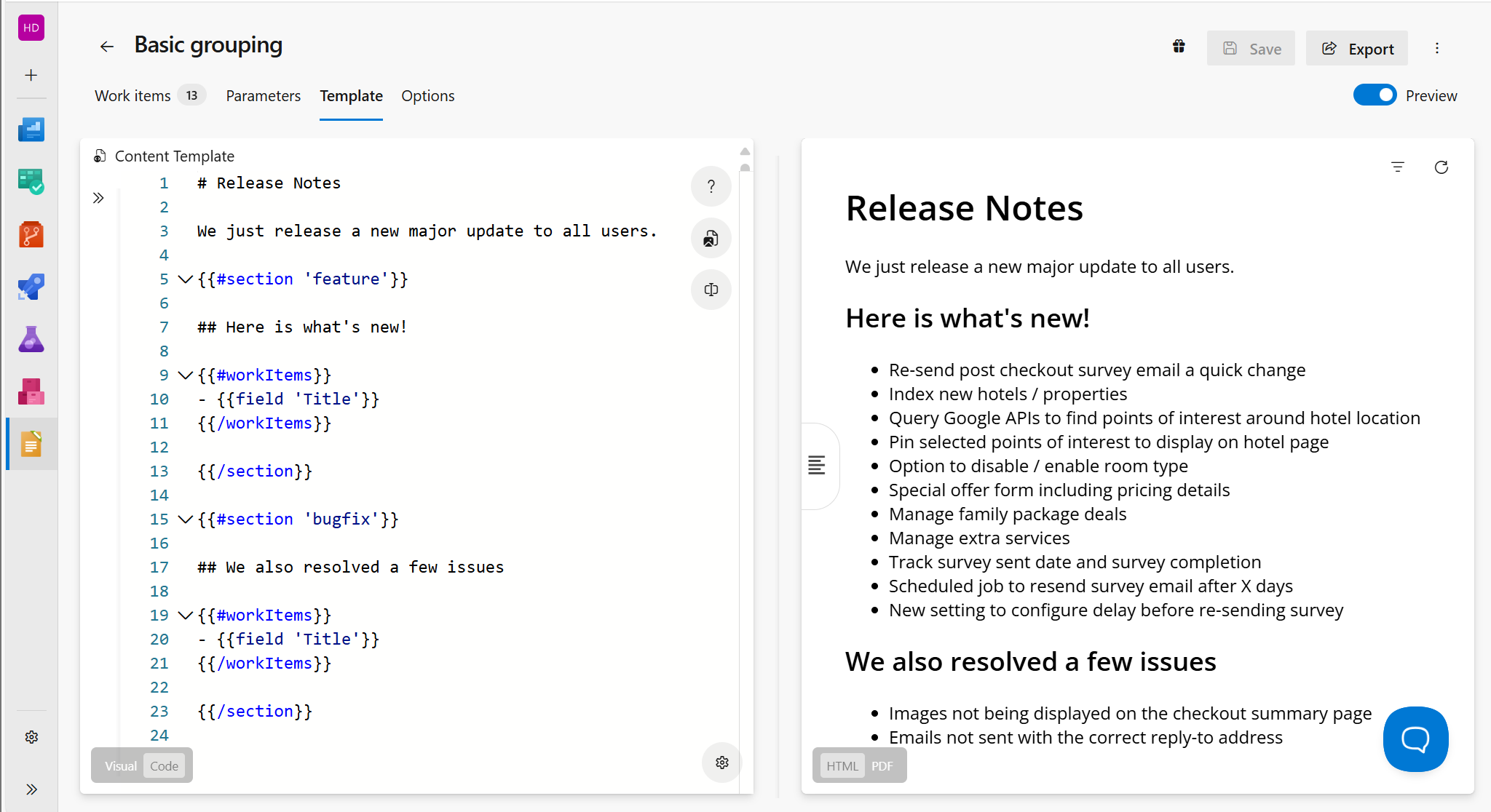
Build the document in Azure DevOps
Step 1
Add the work items
Pick a saved query, the sprint, the build or release, or select items on the backlog. Bravo Notes loads the linked work items into a list you can check before anything is rendered.
Step 2
Sort them with labels
Create one label per section, for example feature (Type = User Story) and bugfix (Type = Bug and State = Closed). Labels are saved with the template, so every release is classified the same way.
Step 3
Preview and export
Check the selected work items and wording in the live preview. From the UI, download PDF, HTML or Markdown, publish to the Azure DevOps Wiki, send by email (Professional or above), or publish to Confluence (Business or above). For automated publishing, configure the build task with your saved template and destination.
Next time
Select the next release, update the version parameter and review the preview. Your saved template, label rules and PDF settings keep the layout consistent.
Starter template
Paste this on the Template tab and create the three labels listed below it. A section only renders when it contains work items, and the known issues section prints its fallback text when there are none.
Paste into the Template tab
# {{ param 'ProductName' }} {{ param 'Version' }} release notes

Released {{ date format='d mmmm yyyy' }}

{{#section 'feature'}}
## New features

{{#workItems orderBy='Priority'}}
### {{ field 'Title' }}

{{{ field 'Description' }}}
{{/workItems}}
{{/section}}

{{#section 'bugfix'}}
## Fixed bugs

{{#workItems}}
- {{ field 'Title' }} ({{#link}}{{ id }}{{/link}})
{{/workItems}}
{{/section}}

## Known issues

{{#section 'known-issue'}}
{{#workItems}}
- {{ field 'Title' }}
{{/workItems}}
{{else}}
No known issues are listed in the selected work items.
{{/section}}
Labels to create on the Work items tab
| Label | Rule |
|---|---|
feature | Work Item Type = User Story |
bugfix | Work Item Type = Bug and State = Closed |
known-issue | Work Item Type = Bug and Tags contains known-issue |
Parameters to fill in on the Parameters tab: ProductName, Version
Start with fields, sections and linked items in the syntax reference.
Example document excerpt
Orderflow 4.12 release notes
Released 11 November 2026
New features
Export the invoice list to CSV
Account managers can download the currently filtered invoice list as a CSV file from the Invoices page.
Fixed bugs
- Editing an order no longer clears the delivery address (4831)
- The weekly summary email is sent in the account time zone (4836)
Known issues
No known issues are listed in the selected work items.
Illustrative excerpt with fictional work items. This is not a captured Bravo Notes export; your template, data and export settings determine the final document.
We currently build your first custom template for free during your trial.
Contact us“This tool has saved us about 8 hours per major build compiling notes manually. The team is super responsive and provides great support - our release note template was very complex with about 25 different subsections and the tool was able to handle anything we could throw at it.”
What you need
- Any Bravo Notes subscription plan. Starter covers one named user and one project; Professional and Business add users and unlimited projects.
- For the pipeline task with associated work items, commits or pull requests linked to work items. A query or iteration source needs no links.
- Read access to the work items for the person or pipeline identity that generates the document.
Plans apply to one Azure DevOps organization and include named seats for document creators. Readers of exported files do not need a Bravo Notes license. Links back to work items still require Azure DevOps access. Compare plans.
Frequently asked questions
- Do I need a pipeline?
- No. Start in the Bravo Notes UI inside Azure DevOps: add work items, review the preview and export. Use the build task when you want to generate notes in a pipeline or on a schedule with the same saved template.
- Which work items end up in the notes?
- The ones you add: from a build or release, a sprint, a saved query or a backlog selection. In a pipeline, associated work items come from the commits and pull requests linked to the build, so unlinked work is not included. The missing work items guide covers the usual causes.
- Can I print customer-friendly wording instead of the ticket title?
- Yes. Add a release note field to your work item types and print that field in the template instead of the title. The customer-facing changelog page shows the full setup.
- Where can I publish the result?
- From the UI, download PDF, HTML or Markdown, publish to the Azure DevOps Wiki, send by email (Professional or above), or publish to Confluence (Business or above). For automated publishing, the pipeline task also supports a repository and delivery to a Teams channel email address. The destination needs the appropriate permissions and configuration.
Go deeper
Try release notes with your own work items
Install Bravo Notes in your Azure DevOps organization. Start with a small selection of work items, adapt the template above and check the preview before exporting your first document.
Start free trial30 days, every feature, no credit card. The trial does not convert into a paid plan automatically.
Compare plans